
 EN
EN
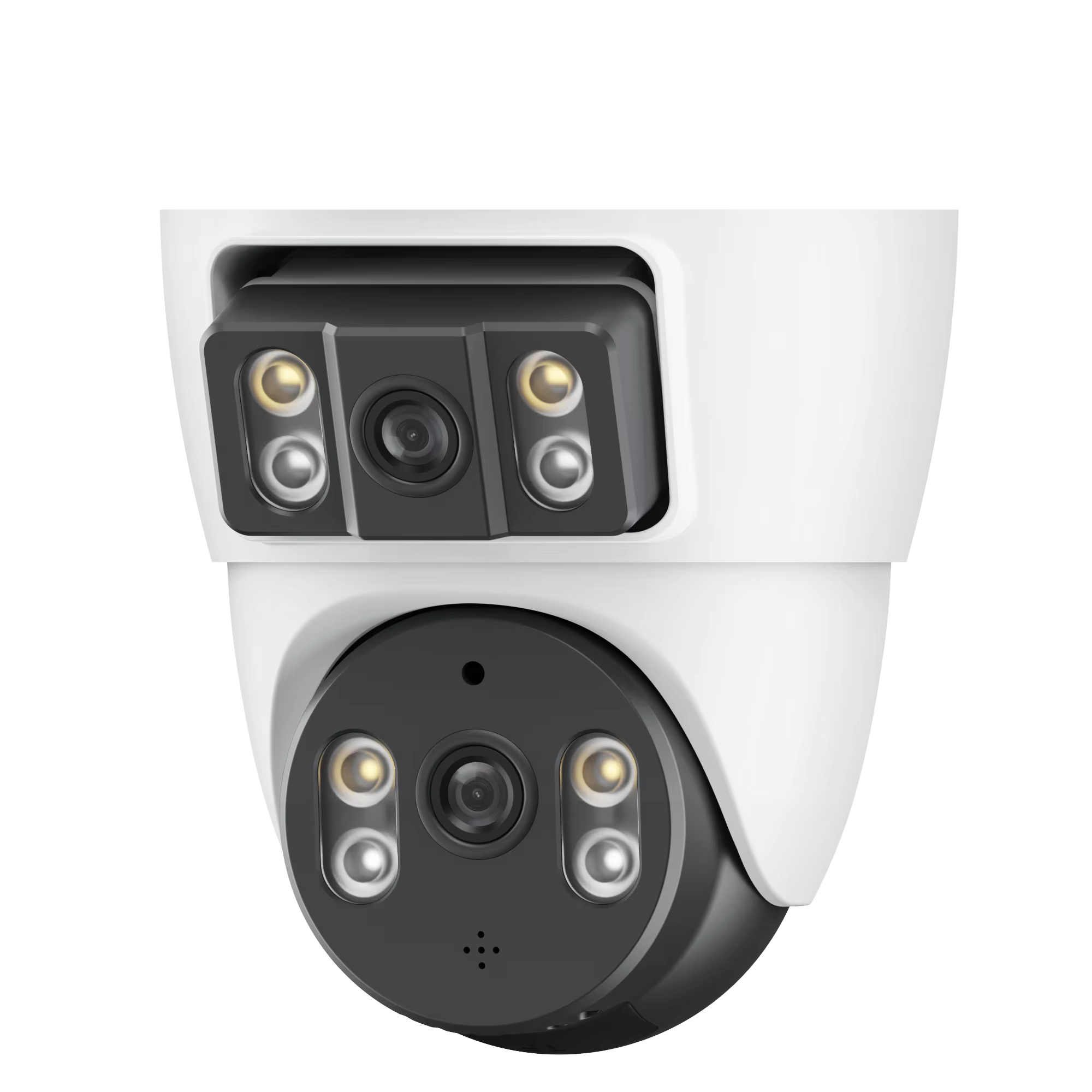
Essential Pre-Installation WiFi Camera Setup
Verifying Router Compatibility and Network Readiness for WiFi Cameras
When setting up a wifi camera system, first check if the router works with 2.4 GHz signals since this is what most security gear relies on. Want to know how strong the signal will be? Grab an app like Wi-Fi Analyzer and test different spots where cameras might go. Look for readings around -67 dBm or better so videos don't freeze up. Also worth noting: networks get crowded fast these days. Studies from last year show that about one third of all connection problems come from routers overwhelmed by too many devices trying to connect at once. Don't forget to keep firmware updated on the router too. And assigning specific IP addresses to each camera helps avoid those annoying connection clashes down the road.
Scanning QR Codes to Automate WiFi Camera Pairing and Initial Configuration
Many modern WiFi cameras now come with QR code scanning features that cut down on those frustrating mistakes from typing in network info by hand. Just grab the manufacturer's app, tap on "Add Device," then point your phone at the QR code located either on the camera itself or inside the box. Scanning this little square code will automatically send over your Wi-Fi details and create a secure connection between devices. Most users find this method cuts their setup time way down, probably around two thirds faster than entering everything manually. For best results when setting things up, try keeping the camera no more than about three meters away from the router while they connect. Getting them close helps avoid any hiccups during the initial handshake process before moving the camera to its permanent spot.
Optimal Placement and Physical Installation of WiFi Cameras
Indoor vs outdoor mounting considerations for reliable WiFi camera performance
Getting the placement right starts by figuring out whether it's going inside or outside. Indoors, the best spots tend to be where people actually move around most - think hallways and front doors. Mount those devices between seven and ten feet up so they can get good facial shots without getting washed out by bright lights causing unwanted glare. Outdoors is different though. These need proper weather protection in boxes that keep them dry, plus mounted somewhere safe under roof overhangs or other covered areas to guard against bad weather or someone messing with them, which keeps the video feed running smoothly. Power matters too. Most indoor ones just plug into whatever outlet is handy nearby. But when putting something outside, we usually end up needing backup batteries or maybe even solar panels depending on location. Always check how stable the signal is before finalizing everything. A recent survey from 2023 showed about two thirds of all problems come down to not thinking through the environment properly. That makes sense when considering how important good placement really is.
Strategic positioning to maximize 2.4 GHz signal strength and minimize interference
To get the most out of the 2.4 GHz band, which works best through walls and covers longer distances, try keeping security cameras within about 100 to 150 feet from the router so there aren't any dead spots. Keep these devices clear of thick concrete walls, metal furniture, and appliances such as microwaves or old cordless phones since they really mess with the signal strength. Whenever possible, set up equipment where there's a clear path between devices or somewhere centrally located in the home. Big houses might need something extra like Wi-Fi extenders or mesh systems to fill in those tricky corners while still maintaining good speed. Tweak the router settings to find less busy channels too because all those neighboring networks bouncing around the same frequencies just creates chaos for our connections. And don't forget to restart everything when first setting things up, it often makes all the difference in getting that solid link needed for proper surveillance.
Understanding WiFi Band Compatibility: Why 2.4 GHz Is Critical for WiFi Cameras
When it comes to getting good results from wifi cameras, the 2.4 GHz band still plays a big role because it covers more ground and goes through obstacles better than other frequencies. The 5 GHz band might be faster, sure, but those signals tend to fade quickly when they hit walls or travel far distances. That's why 2.4 GHz stays strong over bigger spaces. With longer waves that actually work their way through walls and floors, this frequency helps cut down on those annoying dead spots we all know about in different rooms or outside areas. Most security systems need consistent connection, so going with 2.4 GHz makes sense as it keeps dropping connections to a minimum even when there are things in the way.
Key Advantages of 2.4 GHz for Security Systems:
| Feature | 2.4 GHz Band | 5 GHz Band |
|---|---|---|
| Range | Up to 150 ft indoors | Limited to 50–70 ft indoors |
| Obstacle Penetration | High (walls, furniture) | Low (signal attenuation) |
| Interference Risk | Moderate (common in urban areas) | Low (less crowded spectrum) |
While 5 GHz excels in speed for video streaming, its shorter range often fails in perimeter coverage. Security systems prioritize consistent connectivity over bandwidth, making 2.4 GHz the practical choice. For optimal results, position your router centrally and avoid placing cameras near microwave ovens or cordless phones that share this frequency.
Enabling Remote Access via Mobile App Configuration
Syncing WiFi Cameras with the Manufacturer’s App and Enabling Cloud or Local Viewing
To get remote access working, sync your wifi camera with the manufacturer's mobile app first. Grab the app from their official store, set up a good password when creating an account, then walk through those setup steps inside the app itself usually involves either scanning that QR code sticker on the box or typing in some numbers from the back of the device. After everything connects properly, decide how you want to watch what's happening. Cloud storage means being able to check footage anytime anywhere but costs money month after month. Local storage like an SD card keeps things faster and cheaper too plus nobody else can see what's recorded unless they physically take the card out. Security matters though so turn on two factor authentication wherever possible and make sure the router at home is running WPA3 encryption. Cameras that stay updated automatically have around 67% less problems with hackers getting in, according to recent studies. And never try watching over coffee shop internet connections or anything like that. Stick with a proper virtual private network if going outside the house for remote viewing sessions.
Key Implementation Notes:
- Cloud vs. Local: Cloud enables remote access but often requires a subscription; local storage avoids recurring costs but limits off-site viewing.
- Security Protocols: Change default passwords immediately and segment your network to isolate cameras from primary devices.
- Update Cadence: Enable automatic firmware updates to ensure ongoing performance and security.
Diagnosing and Resolving Common WiFi Camera Connection Issues
Identifying root causes of intermittent disconnections in WiFi cameras
Most of the time when connections drop in and out, it's because of signal problems, limited bandwidth, or just plain old environmental stuff getting in the way. Thick concrete walls really mess with those 2.4 GHz signals that almost all cameras use these days. And don't forget about everyday appliances like microwaves throwing off electromagnetic noise that can disrupt things. Homes are getting packed with smart devices now too. The average house has around 16 connected gadgets according to IDC data from last year, which definitely puts stress on network performance. Power issues and old firmware updates will also cause trouble sometimes. If this sounds familiar, start by checking how strong the signal actually is where the camera sits using your router's admin settings. Also worth looking at: did someone recently plug in anything new near where the camera is installed? That could be causing unexpected interference.
Practical fixes: rebooting, firmware updates, and channel optimization
Resolve connectivity issues with targeted troubleshooting:
-
Strategic rebooting sequence:
Power cycle the router first, then the camera, waiting 30 seconds between restarts. This clears cached errors and re-establishes a stable connection. -
Firmware maintenance:
Update camera firmware through the manufacturer’s app at least quarterly. Over 40% of disconnections are linked to outdated software (Cybersecurity Ventures 2024), and updates often include critical stability and security patches. -
Channel optimization:
Use a Wi-Fi analyzer app to identify less congested channels (typically 1, 6, or 11 on 2.4 GHz) and adjust your router settings accordingly to reduce interference from nearby networks.
For persistent problems, reposition the camera within 15 feet of the router during testing or deploy mesh network nodes to eliminate coverage dead zones.
FAQ
Why is 2.4 GHz preferred for WiFi cameras?
2.4 GHz signals cover more distance and penetrate obstacles better than 5 GHz, providing more consistent connectivity for security cameras.
What should I do if my WiFi camera keeps disconnecting?
Check signal strength, reboot devices, update firmware, and optimize channel settings to resolve connectivity issues.
How does QR code scanning simplify WiFi camera setup?
QR code scanning quickly transfers WiFi details for automatic and error-free camera configuration, reducing setup time.
What are the benefits of cloud storage for WiFi camera footage?
Cloud storage offers remote access to footage anywhere, but requires a subscription, whereas local storage allows quicker access but limits off-site viewing.
Why should I avoid public WiFi for accessing camera footage?
Public WiFi can be insecure; use a Virtual Private Network (VPN) for safer remote access.
Table of Contents
- Essential Pre-Installation WiFi Camera Setup
- Optimal Placement and Physical Installation of WiFi Cameras
- Understanding WiFi Band Compatibility: Why 2.4 GHz Is Critical for WiFi Cameras
- Enabling Remote Access via Mobile App Configuration
- Diagnosing and Resolving Common WiFi Camera Connection Issues
- FAQ