
 EN
EN
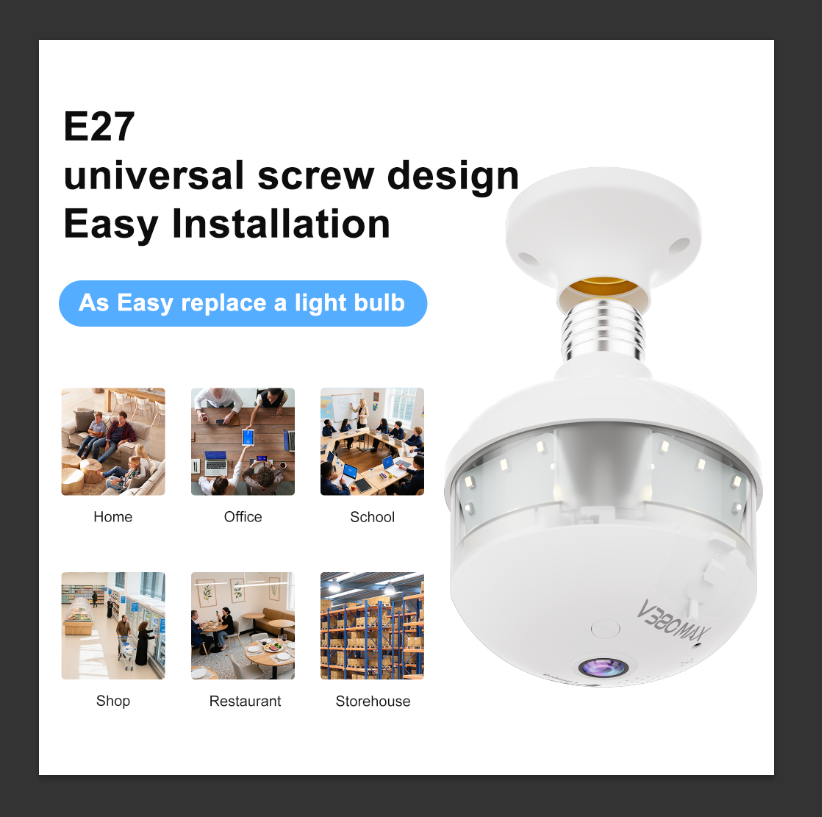
What Is a Bulb Camera and How Does It Work?
Understanding the bulb camera: A modern smart home surveillance solution
Bulb cameras take the place of regular light fixtures but also work as pretty stealthy security devices for indoors. What makes them special is that these all-in-one units provide lighting while keeping an eye on things through wide angle lenses hidden behind frosted glass covers. Traditional security cameras stick out like sore thumbs with their wires running everywhere and big boxes attached to walls, making them easy targets for anyone trying to avoid detection. Most modern bulb cameras connect via Wi-Fi so homeowners can check what's happening from their phones anytime, anywhere. The convenience factor alone has made these little guys popular among folks who want to keep tabs on their property without turning their homes into surveillance labs.
Key features of Wi-Fi enabled bulb cameras for indoor use
- 1080p HD video with night vision for clear low-light footage
- Two-way audio through built-in speakers and microphones
- Motion-activated alerts that send push notifications
- App-controlled settings for brightness, recording schedules, and monitoring zones
Most models support cloud or local storage, preserving footage even if the device is compromised.
Integration with smart home ecosystems: Compatibility and control options
Most Bulb cameras work pretty well with Alexa, Google Assistant, and Apple's HomeKit system. This means folks can give voice commands to control them and manage everything from a single place. People love setting up automated routines too like getting the camera to start recording whenever it detects movement. Some even watch live feeds right next to their other smart home gadgets all in the same app. The manufacturers usually push out firmware updates to keep things compatible as technology changes over time. Still worth checking what kind of network protocols these cameras actually support before buying though. Wi-Fi 6 compatibility might be something important for some users depending on their home setup.
Unboxing and Initial Setup: Tools and Requirements for Bulb Camera Installation
First things first, make sure the box has everything needed: camera bulb, all those mounting pieces, the user guide, plus any extra stuff like that junction box if it came with one. Got a good 2.4 GHz Wi-Fi signal? Need to know the router password too. Before getting started, grab a voltage tester and double check that power is definitely off at the socket where installation will happen. Safety first folks! Keep insulated gloves handy just in case, and have that ladder ready for those tricky high ceiling jobs. Better safe than sorry after all.
Replacing Your Existing Lightbulb with a Bulb Camera: Safety and Positioning Tips
First things first, make sure to switch off the circuit breaker that controls the lighting fixture before doing anything else this will help avoid any dangerous electrical shocks. Take out the existing light bulb and install the new bulb camera in its place but don't go crazy tightening it down, just snug it in there. For best results, install the camera between eight and ten feet from the ground level. Angle the camera lens so it doesn't face toward bright lights or shiny surfaces since reflections can cause problems with visibility. Try placing it near doors where people come and go or anywhere folks tend to gather most often these spots usually give the best surveillance value according to what we've seen in similar setups.
Connecting the Bulb Camera to Your Wi-Fi Network: A Guided Walkthrough
Turn the device on first, then head over to your phone's Wi-Fi menu where you should see the camera's temporary hotspot listed something like BulbCam_XXXX. Now open up that companion app everyone talks about, tap on Add Device, and input those 2.4 GHz network credentials we all hate typing out. Sometimes things just won't connect properly though. When that happens, try restarting the router or turning off any firewall protections and virtual private networks for a few minutes. Speaking from experience here, most folks forget how important placement really is. Keep that router no more than about 15 feet away from where the camera sits if possible. The closer they are, the better the connection tends to stay stable without dropping out at inconvenient times.
Using the Companion App to Complete Device Pairing and Configuration
After getting everything set up, give your camera a name like Front Entry or whatever makes sense for where it's installed, then map it to the correct location within the app interface. Take some time to tweak those settings too - adjusting motion detection areas so it doesn't go off every time a cat walks by, setting when night vision kicks in based on how much light there typically is, and making sure two way audio works properly if needed. Don't forget to check for firmware updates right away either. Old software versions are actually responsible for around 64% of all security issues according to Cybersecurity Insights from last year. And while we're talking about security, make sure WPA3 encryption is turned on for the network connection and enable that second factor authentication thing they keep mentioning these days. These extra steps might seem tedious but they really do matter when protecting against unwanted access.
Testing Camera Functionality: Live Feed, Motion Detection, and Audio Check
Stroll around the areas being watched to set off the motion sensors and check if the system sends alerts in roughly 3 to 5 seconds. Look at the live video feed to confirm the camera covers more than 130 degrees and tweak the sensitivity settings so it doesn't go off for every little movement. Give the two way audio a try too see how clear it sounds and whether there's any noticeable delay when speaking back and forth, ideally keeping lag below half a second. Don't forget to run these tests in daylight hours as well as nighttime conditions to make sure everything works reliably regardless of lighting levels.
Common Installation Challenges and How to Fix Them
Wi-Fi Lightbulb Camera Connection Issues: Diagnosing Signal Strength and Router Compatibility
About 45% of problems with setting up smart homes come down to Wi-Fi troubles according to the Smart Home Tech Report for 2023. Before installing anything, check if the router can handle 2.4 GHz networks since that's what most camera bulbs need to work properly. Grab a Wi-Fi analyzer app from the store and test how strong the signal is where the camera will go. Aim for readings better than -60 dBm as a good benchmark. If the signal isn't strong enough, moving the router closer might help or consider getting a Wi-Fi booster placed somewhere between 15 and 30 feet away from where the camera sits. Sometimes just a little tweak makes all the difference when these devices refuse to connect properly.
Network Connectivity Testing for Smart Bulbs Using Mobile Apps and Diagnostic Tools
Many companion apps include diagnostic tools to assess bandwidth and signal quality. Run a test to ensure upload speeds meet the camera's minimum requirement—typically 2 Mbps for HD streaming. If packet loss exceeds 5%, reboot your router and pause bandwidth-intensive activities during setup.
Smart Home Device Installation Challenges: Firmware Updates and Reset Procedures
Install firmware updates before finalizing installation; over 60% of persistent connectivity problems resolve after updating (IoT Security Foundation 2023). For unresponsive devices, perform a hard reset:
- Turn the bulb off/on three times
- Press and hold the reset button for 10 seconds
- Re-pair via the app
Ensure uninterrupted power during updates to avoid corruption.
Best Practices for Long-Term Bulb Camera Performance
Optimizing Router Placement and Wi-Fi Channels for Stable Bulb Camera Operation
For best results, put the router somewhere between 15 to 30 feet away from where the camera will be installed. Try to avoid placing it behind thick walls or near big appliances that might block the signal. A good trick is to grab a Wi-Fi analyzer app and check which channels are actually free. According to some research from Ponemon in 2023, most connection issues happen because too many devices are fighting over the same channel space. If someone lives in a house with multiple floors, make sure the router sits on the same floor as the camera for stronger reception. Want even better coverage? Consider upgrading to a dual-band router system or setting up a mesh network throughout the home. These options tend to fill dead spots and provide more stable connections overall.
Regular Maintenance: Updating Software and Cleaning Lens Covers
Monthly firmware updates should be part of regular maintenance routines as they fix security holes and boost how well the system detects issues. According to recent studies from CISA back in 2023, about two thirds of all device problems actually come down to old software versions sitting on devices. For those camera lenses, it's worth taking five minutes each week to wipe away dust using nothing but a soft microfiber cloth. Dust accumulation really does matter since it can cut night vision performance down by nearly a third over time. Most modern apps these days offer automatic update features anyway, so turning that on makes life much easier for anyone managing multiple devices without having to remember dates or download patches manually.
Securing Your Bulb Camera Against Unauthorized Access and Data Breaches
Turning on WPA3 encryption along with setting up two factor authentication (2FA) can stop around 98 percent of those brute force attacks targeting smart home gadgets. Most modern routers have these security options buried somewhere in their settings menu. When it comes to passwords, forget what came preloaded on the device. Instead create something custom made with at least twelve characters mixing uppercase letters, lowercase ones too, some digits thrown in there, maybe even an emoji or symbol now and then. Studies show this simple step cuts down breach chances by roughly three quarters versus leaving everything at factory defaults. Also remember to turn off remote access features whenever possible. And if budget allows, separate out all surveillance equipment onto its own dedicated network segment away from computers and phones. This kind of network segmentation works wonders for keeping sensitive data safe from potential breaches through compromised cameras or sensors.
FAQ
What is the main advantage of using a bulb camera over traditional security cameras?
The main advantage of using a bulb camera is that it combines lighting with surveillance, providing a discreet and aesthetically pleasing solution without the bulky presence of traditional security cameras.
Can bulb cameras work with smart home systems?
Yes, most bulb cameras are compatible with smart home systems such as Alexa, Google Assistant, and Apple HomeKit, allowing for integration and voice-control commands.
What are common installation challenges for bulb cameras?
Common challenges include Wi-Fi connection issues and ensuring proper router compatibility, which can often be resolved by checking signal strength or performing firmware updates.
How can I secure my bulb camera against unauthorized access?
To secure your bulb camera, enable WPA3 encryption, set up two-factor authentication, create a strong custom password, and consider network segmentation to protect sensitive data.
Table of Contents
- What Is a Bulb Camera and How Does It Work?
- Unboxing and Initial Setup: Tools and Requirements for Bulb Camera Installation
- Replacing Your Existing Lightbulb with a Bulb Camera: Safety and Positioning Tips
- Connecting the Bulb Camera to Your Wi-Fi Network: A Guided Walkthrough
- Using the Companion App to Complete Device Pairing and Configuration
- Testing Camera Functionality: Live Feed, Motion Detection, and Audio Check
- Common Installation Challenges and How to Fix Them
- Best Practices for Long-Term Bulb Camera Performance
- FAQ